
Load the add-in
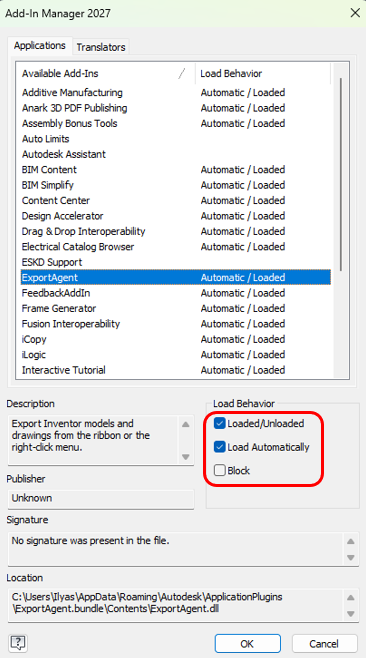
In Inventor, open Tools, then Add-Ins. Select ExportAgent. Check Loaded/Unloaded and Load Automatically, and leave Block clear.
Where to find it
Open Inventor 2025 or later and use the ExportAgent tab. It appears in a part, an assembly, a drawing, and when no document is open.
- Active Selection or Document exports the file you are in. On a drawing this panel is named Active Document.
- Batch Export asks you to pick files from disk.
- Settings holds License, Prompt settings, and About.


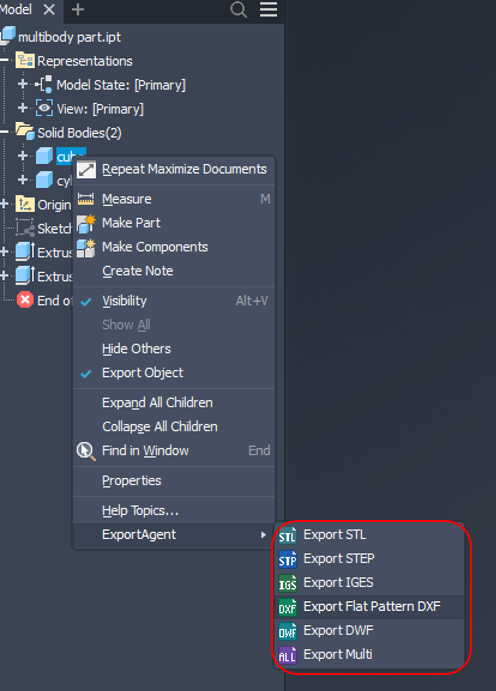
The same active-document commands are on the right-click menu. With no document open, only batch commands and Settings are available.
Workflow
Method 1: Export selected objects
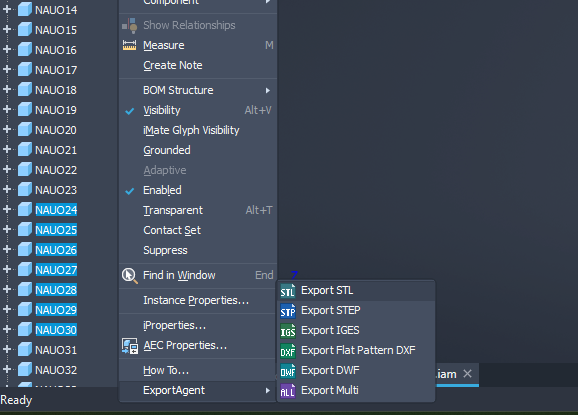
- Select the objects you want to export. These can be components or solid bodies.
- Right-click, choose ExportAgent, then choose the format.
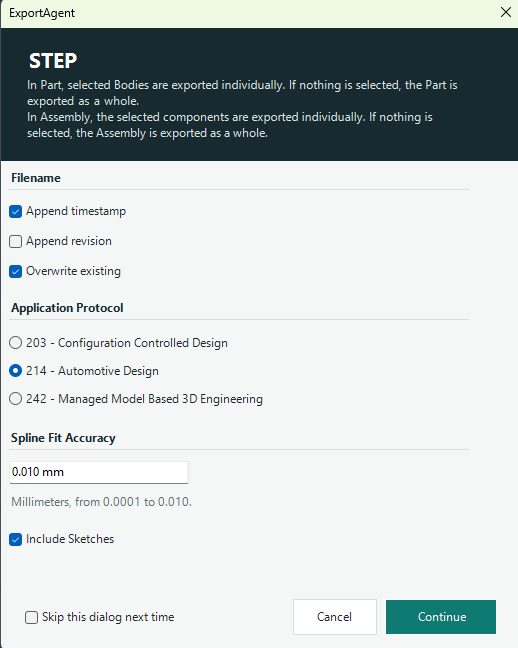
- Configure the export options, then click Continue.
- Browse to the destination folder, then click Select Folder to run the export.
Method 2: Batch export
- On the ribbon, open ExportAgent, then Batch Export, and run the batch command for the format you want.

- Configure the export options, then click Continue.
- Select the files to export, then click Open.
- Browse to the destination folder, then click Select Folder to start the batch export.
License
Install Export Agent from the Autodesk App Store. Sign in to Inventor with the Autodesk account that owns ExportAgent, then choose License and Check App Store. Export commands stay off until that check succeeds.
If the App Store cannot be reached, a license confirmed in the last 30 days still works. If the store says this account is not licensed, the commands turn off.
What gets exported
For STL, STEP, IGES, and DWF from a part or assembly:
- Selected bodies in a part are exported one by one. With nothing selected, the whole part is exported.
- Selected components in an assembly are exported one by one. Several occurrences of the same file count once. With nothing selected, the whole assembly is exported.
- To export every body or component, select them first, then run the command.
A drawing export uses the active drawing. Sheet selection in the browser is ignored. For PDF, choose Current sheet, All sheets, or a sheet range in the options window.
Flat Pattern DXF writes the flat pattern of selected sheet-metal parts. In an assembly with nothing selected, it writes every sheet-metal part. If a sheet-metal part has no flat pattern yet, ExportAgent creates one. A part that is not sheet metal is reported as a failure.
DWF from a drawing publishes the whole drawing, including all sheets.
Formats
| Command | From |
|---|---|
| STL, STEP, IGES | Part or assembly |
| Flat Pattern DXF | Sheet-metal part, or sheet-metal parts in an assembly |
| PDF, Drawing DXF, AutoCAD DWG | Drawing |
| DWF | Part, assembly, or drawing |
STL can write one file, or one file per part instance, from the Structure option. That split applies when the whole document is exported.
A multi-sheet Drawing DXF or AutoCAD DWG may be saved by Inventor as a zip of one file per sheet.
Multi export
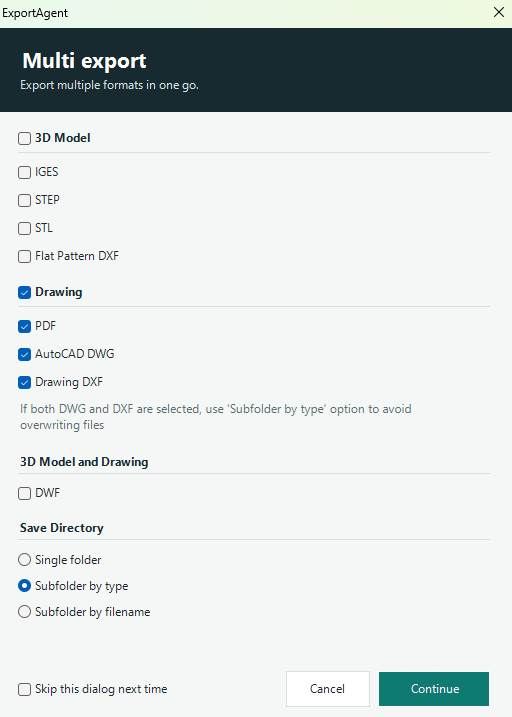
Export Multi writes the active file in every format you turn on. Batch Multi does the same for files you pick.
3D Model and Drawing each have a group checkbox. DWF is listed under 3D Model and Drawing because it applies to both. If both AutoCAD DWG and Drawing DXF are selected, choose Subfolder by type so the two zip or file names do not overwrite each other. You can also save everything in one folder, or in a subfolder named after each file.
File names and prompts
Each options window can append the export time, append the revision iProperty, and overwrite a file that already uses that name.
Skip this dialog next time keeps those choices and hides the window on the next run. Prompt settings turns that skip on or off per command. A batch command shares the choice with its matching active-document command.
When more than one body, component, or file will be written, ExportAgent asks you to continue, then asks for a folder.